Editor
The Gutenberg Editor is the Wordpress editing UI that uses modular system of 'Blocks' to author the content of Pages, Posts and Articles.
The Editor UI
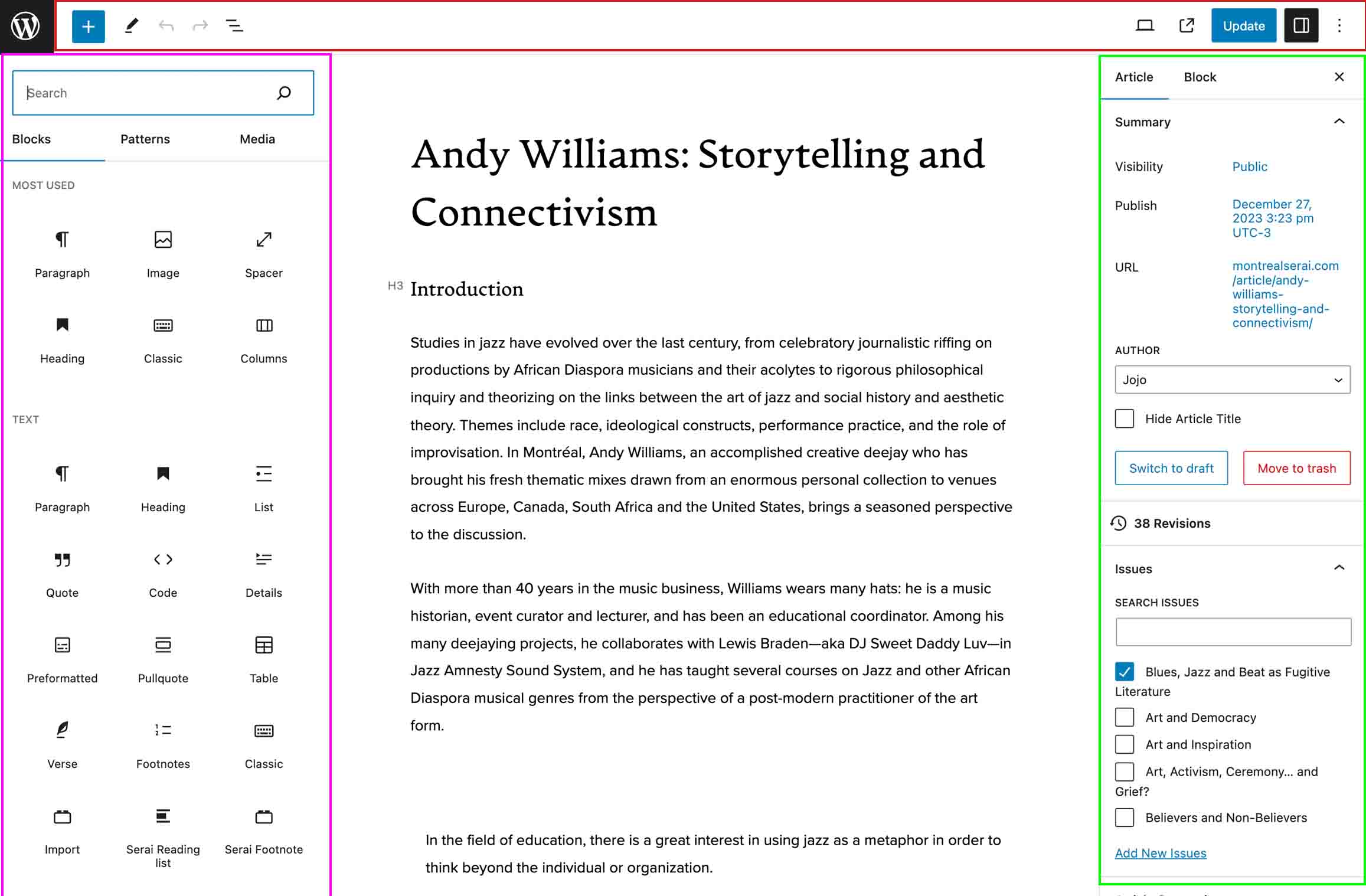
Top Toolbar
The Top Toolbar (red outline) is a fixed position bar. It contains buttons on the top left and right for toggling the visibility of the different UI panes available in the Editor view. On the left side are toggles and options for the Block insert panel (pink outline) and the right you will find the Publish/Update button and a toggle for the Post/Block option panel (green outline).
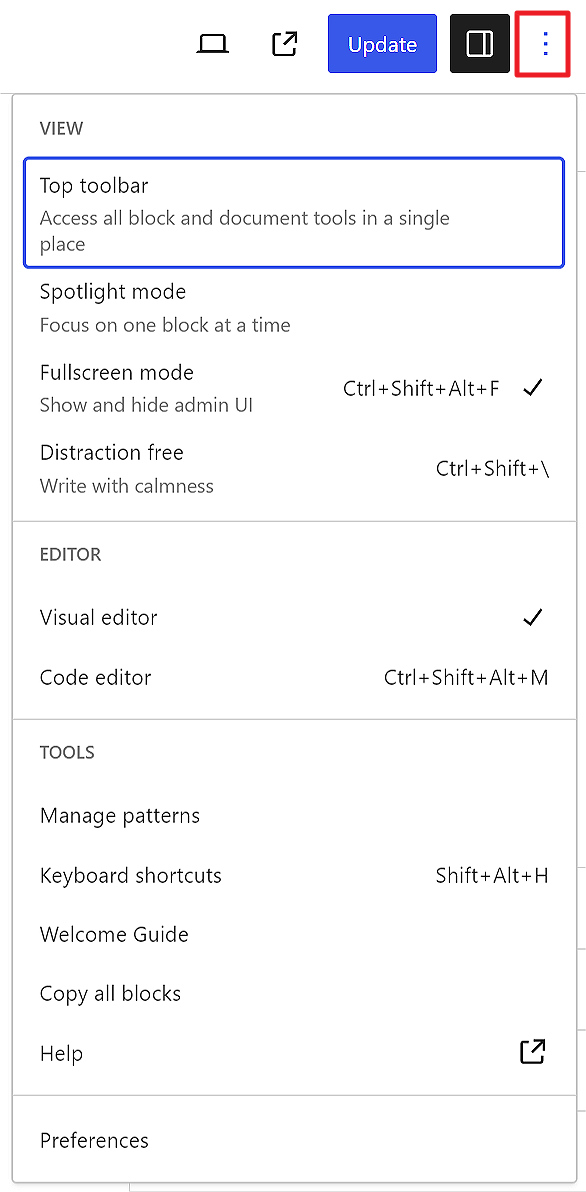
The Options dialog can be toggled using the 3 dots and allows for advanced view options such as ‘Code view’, Fullscreen mode’ and ‘Preferences’.
Block insert panel
The Block insert panel (pink outline) is a categorized list of the UI Blocks and Patterns available to insert into an Article, Page or Post. Toggle the visibility of the Block insert panel with the  in the left of the Top Toolbar.
Gutenberg Editor
The Gutenberg editor, the middle section (no outline), is where your Article content is added. It allows for the insertion of Blocks wither it be headings and rich text or video, Pullquotes and other custom componenents.
Post/Block option panel
The Post/Block option panel (green outline) panel provides contextual options for your Post or a selected Block. Use the tabs to alternate between them. It’s visibility can be toggled in the Top toolbar using 
For more detailed documentation, refer to Wordpress Block editor
Serai Custom fields
Article Overview text
Jazz is a great example of the way a medium can draw attention and create inclusivity in an educational scheme, which allows one to be free while living within the structure of sound.”
– Andy Williams
Article Overview text (sometimes called Leader text) is the large text block description that follows the Title and Author in the Article header. Use as a description of the Page or Article but be enticing enough as to encourage the User to continue reading. Copying and pasting the Excerpt field contents here is discouraged. This field is very useful for SEO.